
How to check a game on Steam Deck and Linux
· WORLD GAMING GUIDE
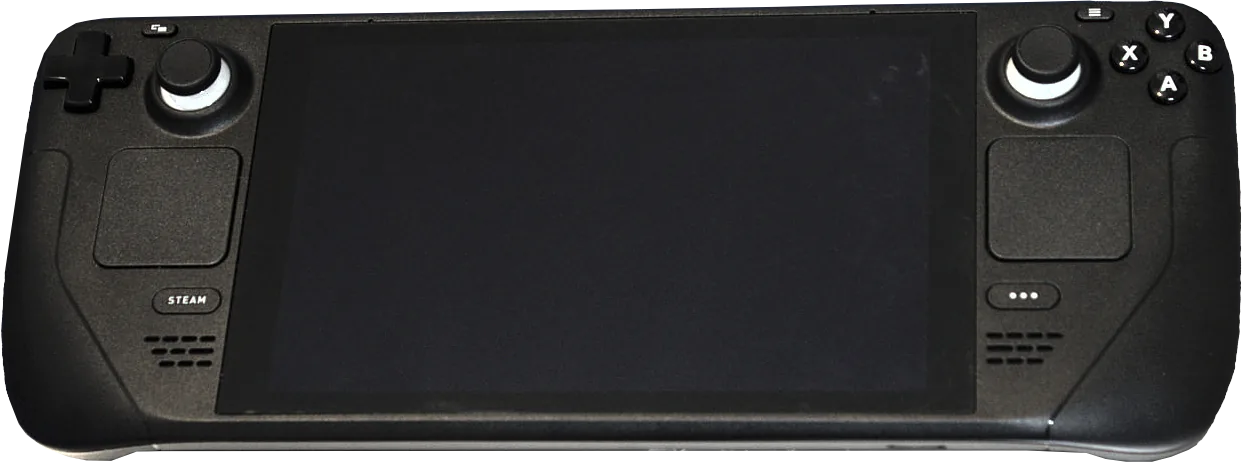
Start with the exact game, edition and device. Open the compatibility details on Steam, then test a representative section with your usual controls. On a desktop or handheld running Linux, record the operating system and whether you are using a native Linux release or a Windows release through Proton.
Read the Steam Deck rating
Valve checks input, display, launchers and system support. Verified games pass its checks. Playable games may need a manual step, such as using the touchscreen in a launcher. Unsupported means Valve found a compatibility problem. Unknown means Valve has yet to review the title. Read the detail behind the badge before choosing a game.
Check the actual Linux setup
A native release runs as Linux software. Proton is Valve’s compatibility layer for Windows games. On another Linux computer, record your distribution, hardware and game version. If an online mode matters, verify what the publisher supports and test that mode alongside the campaign.
Test the controls and save
Open the menus, complete an ordinary action, save, quit and resume. Check text size, prompts and keyboard entry with the screen and controllers you use. Before moving saves between devices, check which files the game syncs and confirm that the latest progress loads on the receiving device.
Try offline before you travel
While connected, let downloads finish and start the game once. Quit, choose Go Offline in Steam, then start the game again. Load your save and test the mode you plan to play. A separate launcher or a required network connection can still prevent offline play.
Decision framework
| Situation | Check | Useful decision |
|---|---|---|
| Steam Deck shows Playable | Read the stated limitations | Try the input method or launcher step that Valve identifies. |
| Linux PC with a Windows release | Check Proton, the game version and publisher requirements | Test the features you rely on in the actual environment. |
| Playable at home, needed on a train | Start a saved session in Steam Offline Mode | Confirm that the launcher and the chosen game mode work without a connection. |
| Switching from another device | Check the game’s cloud save support and sync status | Open and verify the intended save before relying on it. |
Your action plan
- Record the game build, device, operating system and launch method.
- Test input, readable text and save recovery in a normal session.
- Test the online or offline mode you intend to use.
Your verification sheet
Tick completed checks and note what remains uncertain. This tool keeps values in the page without sending them or creating a saved file. Copy any notes you want to keep.
Practical example
A game starts on your Deck but asks for touchscreen input in its launcher. If you plan to play docked from a sofa, test the whole startup with your external controller. Then launch it again after quitting and verify that you can resume your save without reaching for the handheld.
Common questions
Does Steam Deck Verified cover every Linux PC?
Valve’s badge describes the tested device. On another machine, check the operating system, hardware and support for the exact game version.
Are the four compatibility ratings permanent?
Valve updates ratings as games and device software change. Open the current details in Steam and repeat any test that matters after a major update.
Will Steam Offline Mode let me play every downloaded game?
The game and its launcher must support the offline session. Test them after an initial online launch.
Sources and resources
These official sources describe the named services or devices. Their rules do not automatically apply to other products: check your model, game, account region and current terms.